CSS Border Style
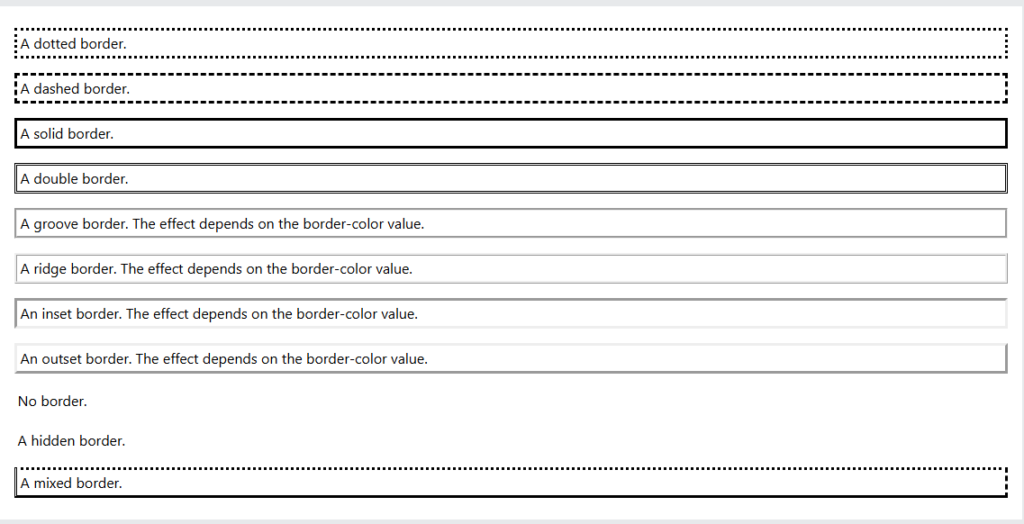
The border-style property specifies what kind of border to display.
The following values are allowed:
dotted– Defines a dotted borderdashed– Defines a dashed bordersolid– Defines a solid borderdouble– Defines a double bordergroove– Defines a 3D grooved border. The effect depends on the border-color valueridge– Defines a 3D ridged border. The effect depends on the border-color valueinset– Defines a 3D inset border. The effect depends on the border-color valueoutset– Defines a 3D outset border. The effect depends on the border-color valuenone– Defines no borderhidden– Defines a hidden border
The border-style property can have from one to four values (for the top border, right border, bottom border, and the left border).
Example
Demonstration of the different border styles:
p.dotted {border-style: dotted;}
p.dashed {border-style: dashed;}
p.solid {border-style: solid;}
p.double {border-style: double;}
p.groove {border-style: groove;}
p.ridge {border-style: ridge;}
p.inset {border-style: inset;}
p.outset {border-style: outset;}
p.none {border-style: none;}
p.hidden {border-style: hidden;}
p.mix {border-style: dotted dashed solid double;}
|
1 2 3 4 5 6 7 8 9 10 11 12 13 14 15 16 17 18 19 20 21 22 23 24 25 26 27 28 29 30 31 32 33 34 35 36 |
<!DOCTYPE html> <html> <head> <style> p.dotted {border-style: dotted;} p.dashed {border-style: dashed;} p.solid {border-style: solid;} p.double {border-style: double;} p.groove {border-style: groove;} p.ridge {border-style: ridge;} p.inset {border-style: inset;} p.outset {border-style: outset;} p.none {border-style: none;} p.hidden {border-style: hidden;} p.mix {border-style: dotted dashed solid double;} </style> </head> <body> <h2>The border-style Property</h2> <p>This property specifies what kind of border to display:</p> <p class="dotted">A dotted border.</p> <p class="dashed">A dashed border.</p> <p class="solid">A solid border.</p> <p class="double">A double border.</p> <p class="groove">A groove border.</p> <p class="ridge">A ridge border.</p> <p class="inset">An inset border.</p> <p class="outset">An outset border.</p> <p class="none">No border.</p> <p class="hidden">A hidden border.</p> <p class="mix">A mixed border.</p> </body> </html> |
Result:
CSS Border Width
The border-width property specifies the width of the four borders.
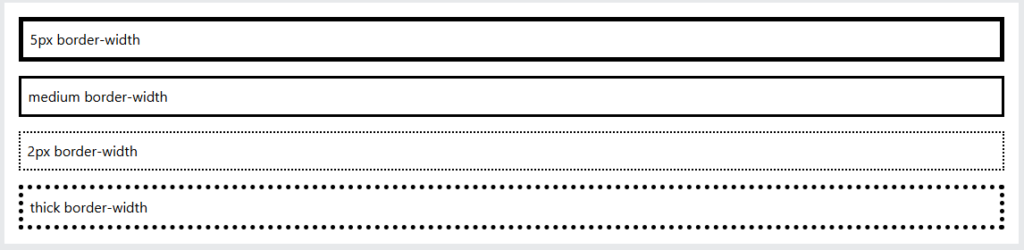
The width can be set as a specific size (in px, pt, cm, em, etc) or by using one of the three pre-defined values: thin, medium, or thick:
Example
Demonstration of the different border widths:
|
1 2 3 4 5 6 7 8 9 10 11 12 13 14 15 16 17 18 19 20 21 22 23 24 25 26 27 28 29 30 31 32 33 34 35 36 37 38 39 40 41 42 43 44 45 46 47 48 49 50 51 52 |
<!DOCTYPE html> <html> <head> <style> p.one { border-style: solid; border-width: 5px; } p.two { border-style: solid; border-width: medium; } p.three { border-style: dotted; border-width: 2px; } p.four { border-style: dotted; border-width: thick; } p.five { border-style: double; border-width: 15px; } p.six { border-style: double; border-width: thick; } </style> </head> <body> <h2>The border-width Property</h2> <p>This property specifies the width of the four borders:</p> <p class="one">Some text.</p> <p class="two">Some text.</p> <p class="three">Some text.</p> <p class="four">Some text.</p> <p class="five">Some text.</p> <p class="six">Some text.</p> <p><b>Note:</b> The "border-width" property does not work if it is used alone. Always specify the "border-style" property to set the borders first.</p> </body> </html> |
Result:
CSS Border Color
The border-color property is used to set the color of the four borders.
The color can be set by:
- name – specify a color name, like “red”
- HEX – specify a HEX value, like “#ff0000”
- RGB – specify a RGB value, like “rgb(255,0,0)”
- HSL – specify a HSL value, like “hsl(0, 100%, 50%)”
- transparent
Note: If border-color is not set, it inherits the color of the element.
Example
Demonstration of the different border colors:
|
1 2 3 4 5 6 7 8 9 10 11 12 13 14 15 16 17 18 19 20 21 22 23 24 25 26 27 28 29 30 31 32 33 |
<!DOCTYPE html> <html> <head> <style> p.one { border-style: solid; border-color: red; } p.two { border-style: solid; border-color: green; } p.three { border-style: dotted; border-color: blue; } </style> </head> <body> <h2>The border-color Property</h2> <p>This property specifies the color of the four borders:</p> <p class="one">A solid red border</p> <p class="two">A solid green border</p> <p class="three">A dotted blue border</p> <p><b>Note:</b> The "border-color" property does not work if it is used alone. Use the "border-style" property to set the borders first.</p> </body> </html> |

CSS Border – Individual Sides
From the examples on the previous pages, you have seen that it is possible to specify a different border for each side.
In CSS, there are also properties for specifying each of the borders (top, right, bottom, and left):
In the example below we use the four properties above to set the style of each border side:
|
1 2 3 4 5 6 7 8 9 10 11 12 13 14 15 16 17 18 19 |
<!DOCTYPE html> <html> <head> <style> p { border-top-style: dotted; border-right-style: solid; border-bottom-style: dotted; border-left-style: solid; } </style> </head> <body> <h2>Individual Border Sides</h2> <p>2 different border styles.</p> </body> </html> |

CSS Border – Shorthand Property
Like you saw in the previous page, there are many properties to consider when dealing with borders.
To shorten the code, it is also possible to specify all the individual border properties in one property.
The border property is a shorthand property for the following individual border properties:
border-widthborder-style(required)border-color
Example
|
1 2 3 4 5 6 7 8 9 10 11 12 13 14 15 16 17 |
<!DOCTYPE html> <html> <head> <style> p { border: 5px solid red; } </style> </head> <body> <h2>The border Property</h2> <p>This property is a shorthand property for border-width, border-style, and border-color.</p> </body> </html> |

CSS Rounded Borders
The border-radius property is used to add rounded borders to an element:
|
1 2 3 4 5 6 7 8 9 10 11 12 13 14 15 16 17 18 19 20 21 22 23 24 25 26 27 28 29 30 31 32 33 34 35 36 37 38 39 40 |
<!DOCTYPE html> <html> <head> <style> p.normal { border: 2px solid red; padding: 5px; } p.round1 { border: 2px solid red; border-radius: 5px; padding: 5px; } p.round2 { border: 2px solid red; border-radius: 8px; padding: 5px; } p.round3 { border: 2px solid red; border-radius: 12px; padding: 5px; } </style> </head> <body> <h2>The border-radius Property</h2> <p>This property is used to add rounded borders to an element:</p> <p class="normal">Normal border</p> <p class="round1">Round border</p> <p class="round2">Rounder border</p> <p class="round3">Roundest border</p> </body> </html> |

CSS Text Shadow
The CSS text-shadow property applies a shadow to text.
In its simplest use, you only specify the horizontal and the vertical shadow.
In addition, you can add a shadow color and blur effect.
|
1 2 3 4 5 6 7 8 9 10 11 12 13 14 15 |
<!DOCTYPE html> <html> <head> <style> h1 { text-shadow: 2px 2px 5px red; } </style> </head> <body> <h1>Text-shadow effect!</h1> </body> </html> |

CSS box-shadow Property
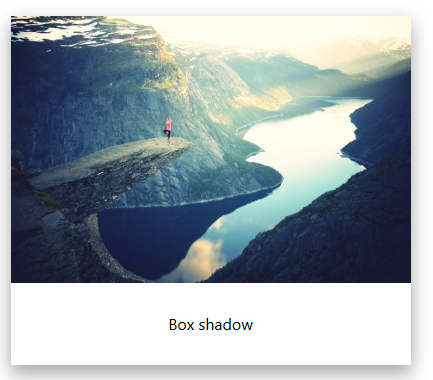
The CSS box-shadow property is used to apply one or more shadows to an element.
CSS Horizontal and Vertical Shadow
In its simplest use, you only specify the horizontal and the vertical offset of the shadow.
The default color of the shadow is the current text color.
|
1 2 3 4 5 6 7 8 9 10 11 12 13 14 15 16 17 18 19 20 21 |
<!DOCTYPE html> <html> <head> <style> div { width: 300px; height: 100px; padding: 15px; background-color: coral; box-shadow: 10px 10px; } </style> </head> <body> <h1>The box-shadow Property</h1> <div>This is a div element with a box-shadow</div> </body> </html> |
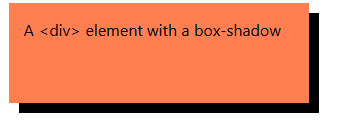
Add a Blur Effect to the Shadow
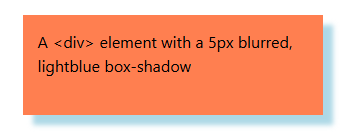
The blur parameter defines the blur radius of the shadow. The higher the number, the more blurred the shadow will be.
|
1 2 3 4 5 6 7 8 9 10 11 12 13 14 15 16 17 18 19 20 21 |
<!DOCTYPE html> <html> <head> <style> div { width: 300px; height: 100px; padding: 15px; background-color: coral; box-shadow: 10px 10px 5px lightblue; } </style> </head> <body> <h1>The box-shadow Property</h1> <div>A div element with a 5px blurred, lightblue box-shadow.</div> </body> </html> |