
The CSS Box Model
In CSS, the term “box model” is used when talking about web design and layout.
The CSS box model is essentially a box that wraps around every HTML element.
Every box consists of four parts: content, padding, borders and margins.
The image below illustrates the CSS box model:
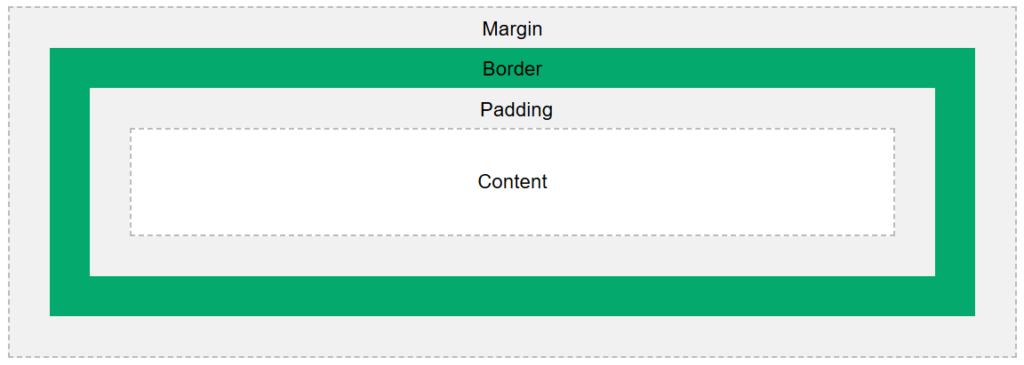
Explanation of the different parts (from innermost part to outermost part):
- Content – The content of the box, where text and images appear
- Padding – Clears an area around the content. The padding is transparent
- Border – A border that goes around the padding and content
- Margin – Clears an area outside the border. The margin is transparent
The box model allows us to add a border around elements, and to define space between elements.
Example
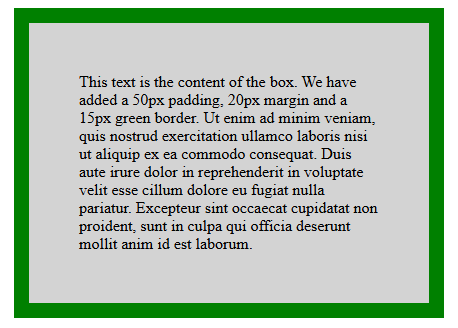
Demonstration of the box model:
|
1 2 3 4 5 6 7 8 9 10 11 12 13 14 15 16 17 18 19 20 21 22 23 24 |
<!DOCTYPE html> <html> <head> <style> div { background-color: lightgrey; width: 300px; border: 15px solid green; padding: 50px; margin: 20px; } </style> </head> <body> <h2>Demonstrating the Box Model</h2> <p>The CSS box model is essentially a box that wraps around every HTML element.</p> <p>It consists of (from innermost part to outermost part): content, padding, border, and margin.</p> <div>This text is the content of the box. We have added a 50px padding, 20px margin and a 15px green border. Ut enim ad minim veniam, quis nostrud exercitation ullamco laboris nisi ut aliquip ex ea commodo consequat. Duis aute irure dolor in reprehenderit in voluptate velit esse cillum dolore eu fugiat nulla pariatur. Excepteur sint occaecat cupidatat non proident, sunt in culpa qui officia deserunt mollit anim id est laborum.</div> </body> </html> |
Demonstrating the Box Model
The CSS box model is essentially a box that wraps around every HTML element.
It consists of (from innermost part to outermost part): content, padding, border, and margin.
CSS Margins
The CSS margin properties are used to create space around elements, outside of any defined borders.
Margins define the distance between an element’s border and the surrounding elements.
With CSS, you have full control over the margins. CSS has properties for setting the margin for each individual side of an element (top, right, bottom, and left), and a shorthand property for setting all the margin properties in one declaration.
|
1 2 3 4 5 6 7 8 9 10 11 12 13 14 15 16 17 18 |
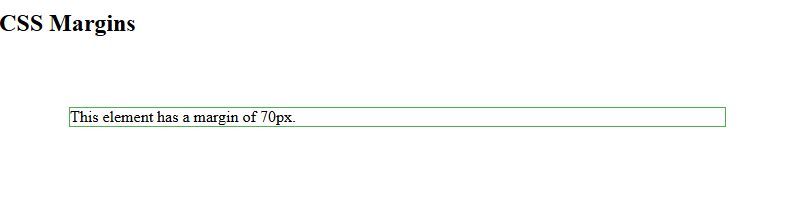
<!DOCTYPE html> <html> <head> <style> div { margin: 70px; border: 1px solid #4CAF50; } </style> </head> <body> <h2>CSS Margins</h2> <div>This element has a margin of 70px.</div> </body> </html> |
Margin – Individual Sides
CSS has properties for specifying the margin for each side of an element:
margin-top– sets the top margin of an elementmargin-right– sets the right margin of an elementmargin-bottom– sets the bottom margin of an elementmargin-left– sets the left margin of an element
All the margin properties can have the following values:
- auto – the browser calculates the margin
- length – specifies a margin in px, pt, cm, etc.
- % – specifies a margin in % of the width of the containing element
- inherit – specifies that the margin should be inherited from the parent element
Tip: Negative values are also allowed.
Example
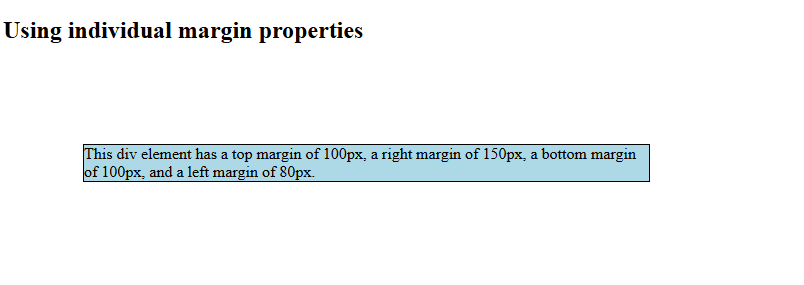
Set different margins for all four sides of a <p> element:
|
1 2 3 4 5 6 7 8 9 10 11 12 13 14 15 16 17 18 19 20 21 22 |
<!DOCTYPE html> <html> <head> <style> div { border: 1px solid black; margin-top: 100px; margin-bottom: 100px; margin-right: 150px; margin-left: 80px; background-color: lightblue; } </style> </head> <body> <h2>Using individual margin properties</h2> <div>This div element has a top margin of 100px, a right margin of 150px, a bottom margin of 100px, and a left margin of 80px.</div> </body> </html> |
Margin – Shorthand Property
To shorten the code, it is possible to specify all the margin properties in one declaration.
The margin property is a shorthand property for the following individual margin properties:
Here is how it works:
If the margin property has four values:
- margin: 25px 50px 75px 100px;
- top margin is 25px
- right margin is 50px
- bottom margin is 75px
- left margin is 100px
Example
Use the margin shorthand property with four values:

CSS Padding
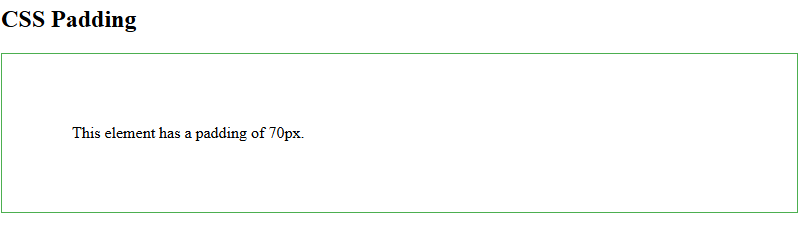
The CSS padding properties are used to generate space around an element’s content, inside of any defined borders.
With CSS, you have full control over the padding. There are properties for setting the padding for each side of an element (top, right, bottom, and left), and a shorthand property for setting all the padding properties in one declaration.
|
1 2 3 4 5 6 7 8 9 10 11 12 13 14 15 16 17 |
<!DOCTYPE html> <html> <head> <style> div { padding: 70px; border: 1px solid #4CAF50; } </style> </head> <body> <h2>CSS Padding</h2> <div>This element has a padding of 70px.</div> </body> </html> |
Padding – Individual Sides
CSS has properties for specifying the padding for each side of an element:
padding-top– sets the top padding of an elementpadding-right– sets the right padding of an elementpadding-bottom– sets the bottom padding of an elementpadding-left– sets the left padding of an element
All the padding properties can have the following values:
- length – specifies a padding in px, pt, cm, etc.
- % – specifies a padding in % of the width of the containing element
- inherit – specifies that the padding should be inherited from the parent element
Note: Negative values are not allowed.
Example
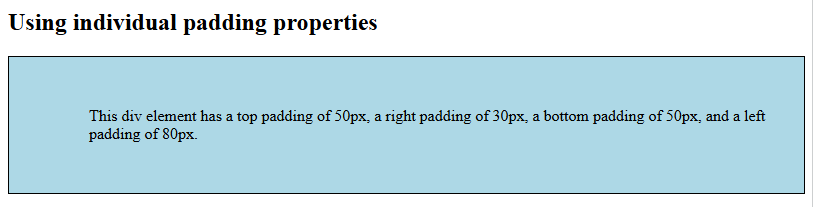
Set different padding for all four sides of a <div> element:
|
1 2 3 4 5 6 7 8 9 10 11 12 13 14 15 16 17 18 19 20 21 22 |
<!DOCTYPE html> <html> <head> <style> div { border: 1px solid black; background-color: lightblue; padding-top: 50px; padding-right: 30px; padding-bottom: 50px; padding-left: 80px; } </style> </head> <body> <h2>Using individual padding properties</h2> <div>This div element has a top padding of 50px, a right padding of 30px, a bottom padding of 50px, and a left padding of 80px.</div> </body> </html> |
Padding – Shorthand Property
To shorten the code, it is possible to specify all the padding properties in one declaration.
The padding property is a shorthand property for the following individual padding properties:
Here is how it works:
If the padding property has four values:
- padding: 25px 50px 75px 100px;
- top padding is 25px
- right padding is 50px
- bottom padding is 75px
- left padding is 100px
Example
Use the padding shorthand property with four values:

Padding and box-sizing
The box-sizing property defines how the width and height of an element are calculated: should they include padding and borders, or not.
The box-sizing property can have the following values:
content-box– This is default. The width and height properties includes only the content (border and padding are not included)border-box– The width and height properties includes content, padding and border
So, to keep the width at 300px, no matter the amount of padding, you can use the box-sizing: border-box;. This causes the element to maintain its actual width; if you increase the padding, the available content space will decrease.
Example
Use the box-sizing property to keep the width at 300px, no matter the amount of padding:
