CSS Forms
CSS Styling Forms
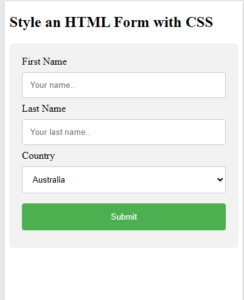
CSS is used to style HTML forms. The look of an HTML form can be greatly improved with CSS:
Example:
|
1 2 3 4 5 6 7 8 9 10 11 12 13 14 15 16 17 18 19 20 21 22 23 24 25 26 27 28 29 30 31 32 33 34 35 36 37 38 39 40 41 42 43 44 45 46 47 48 49 50 51 52 53 54 55 56 57 58 59 |
<!DOCTYPE html> <html> <style> form { border-radius: 5px; background-color: #f2f2f2; padding: 20px; } label {display: block;} input[type=text], select { width: 100%; padding: 12px; margin: 8px 0; display: inline-block; border: 1px solid #ccc; border-radius: 4px; box-sizing: border-box; } input[type=submit] { width: 100%; background-color: #4CAF50; color: white; padding: 14px; margin: 8px 0; border: none; border-radius: 4px; cursor: pointer; } input[type=submit]:hover { background-color: #45a049; } </style> <body> <h2>Style an HTML Form with CSS</h2> <form action="/action_page.php"> <label for="fname">First Name</label> <input type="text" id="fname" name="firstname" placeholder="Your name.."> <label for="lname">Last Name</label> <input type="text" id="lname" name="lastname" placeholder="Your last name.."> <label for="country">Country</label> <select id="country" name="country"> <option value="australia">Australia</option> <option value="canada">Canada</option> <option value="usa">USA</option> </select> <input type="submit" value="Submit"> </form> </body> </html> |
Result:
Styling Form Input Fields
With CSS, you can style most of the different input types, like text fields, password fields, checkboxes, radio buttons, and file inputs. You can also style input labels and form buttons.
Some commonly used CSS properties for styling input fields, are:
CSS Form Inputs
Styling Form Input Fields
With CSS, you can style most of the different input types, like text fields, password fields, checkboxes, radio buttons, and file inputs. You can also style input labels and form buttons.
Some commonly used CSS properties for styling input fields, are:
Style Input Width
The width property is used to set the width of an input field.
Tip: The default width of an HTML input text field, is 20 characters.
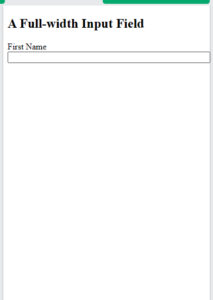
Here we set the width to 100%:
Example:
|
1 2 3 4 5 6 7 8 9 10 11 12 13 14 15 16 17 18 19 20 |
<!DOCTYPE html> <html> <head> <style> input { width: 100%; } </style> </head> <body> <h2>A Full-width Input Field</h2> <form> <label for="fname">First Name</label> <input type="text" id="fname" name="fname"> </form> </body> </html> |
Result:
The example above applies to all <input> elements. If you only want to style a specific input type, you can use attribute selectors:
input[type=text]– will only select text fieldsinput[type=password]– will only select password fieldsinput[type=number]– will only select number fields- etc..
Style Input Padding
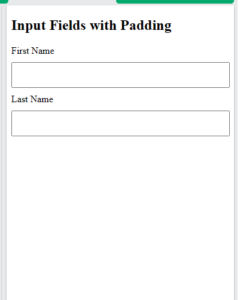
The padding property is used to add some space inside the text field.
Tip: When you have several input fields after each other, you might also want to add some margin, to add more space around them:
Example:
|
1 2 3 4 5 6 7 8 9 10 11 12 13 14 15 16 17 18 19 20 21 22 23 24 25 26 27 |
<!DOCTYPE html> <html> <head> <style> label {display: block;} input[type=text] { width: 100%; padding: 12px; margin: 10px 0; box-sizing: border-box; } </style> </head> <body> <h2>Input Fields with Padding</h2> <form> <label for="fname">First Name</label> <input type="text" id="fname" name="fname"> <label for="lname">Last Name</label> <input type="text" id="lname" name="lname"> </form> </body> </html> |
Result:
CSS Form Focus and Icons
Style Input with Focus
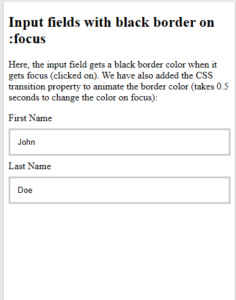
By default, some browsers will add a blue outline around the input when it gets focus (clicked on). You can remove this behavior by adding outline: none; to the input.
Use the :focus selector to do something with the input field when it gets focus:
Example:
|
1 2 3 4 5 6 7 8 9 10 11 12 13 14 15 16 17 18 19 20 21 22 23 24 25 26 27 28 29 30 31 32 33 34 35 36 |
<!DOCTYPE html> <html> <head> <style> label {display: block;} input[type=text] { width: 100%; padding: 12px; margin: 8px 0; box-sizing: border-box; border: 3px solid #ccc; transition: 0.5s; outline: none; } input[type=text]:focus { border: 3px solid #555; } </style> </head> <body> <h2>Input fields with black border on :focus</h2> <p>Here, the input field gets a black border color when it gets focus (clicked on). We have also added the CSS transition property to animate the border color (takes 0.5 seconds to change the color on focus):</p> <form> <label for="fname">First Name</label> <input type="text" id="fname" name="fname" value="John"> <label for="lname">Last Name</label> <input type="text" id="lname" name="lname" value="Doe"> </form> </body> </html> |
Result:
Style Input with icon/image
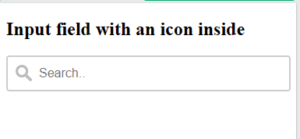
If you want an icon inside the input, use the background-image property and position it with the background-position property. Also notice that we add a large left padding to reserve the space of the icon:
Example:
|
1 2 3 4 5 6 7 8 9 10 11 12 13 14 15 16 17 18 19 20 21 22 23 24 25 26 27 28 |
<!DOCTYPE html> <html> <head> <style> input[type=text] { width: 100%; box-sizing: border-box; border: 2px solid #ccc; border-radius: 4px; font-size: 16px; background-color: white; background-image: url('searchicon.png'); background-position: 10px 10px; background-repeat: no-repeat; padding: 12px 20px 12px 40px; } </style> </head> <body> <h2>Input field with an icon inside</h2> <form> <input type="text" name="search" placeholder="Search.."> </form> </body> </html> |
Result:
Animated Search Input
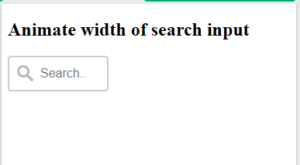
In this example we use the CSS transition property to animate the width of the search input when it gets focus. You will learn more about the transition property later, in our CSS Transitions chapter.
Example:
|
1 2 3 4 5 6 7 8 9 10 11 12 13 14 15 16 17 18 19 20 21 22 23 24 25 26 27 28 29 30 31 32 33 |
<!DOCTYPE html> <html> <head> <style> input[type=text] { width: 130px; box-sizing: border-box; border: 2px solid #ccc; border-radius: 4px; font-size: 16px; background-color: white; background-image: url('searchicon.png'); background-position: 10px 10px; background-repeat: no-repeat; padding: 12px 20px 12px 40px; transition: width 0.4s ease-in-out; } input[type=text]:focus { width: 100%; } </style> </head> <body> <h2>Animate width of search input</h2> <form> <input type="text" name="search" placeholder="Search.."> </form> </body> </html> |
Result:
Style Textarea
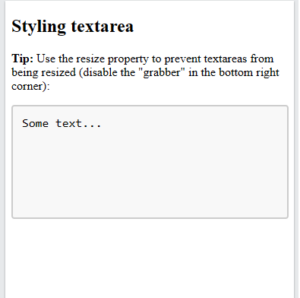
By default, a <textarea> can be resized with a “grabber” in the bottom right corner. To remove the grabber, set the resize property to none:
Example:
|
1 2 3 4 5 6 7 8 9 10 11 12 13 14 15 16 17 18 19 20 21 22 23 24 25 26 27 28 29 |
<!DOCTYPE html> <html> <head> <style> textarea { width: 100%; height: 150px; padding: 12px; box-sizing: border-box; border: 2px solid #ccc; border-radius: 4px; background-color: #f8f8f8; font-size: 16px; resize: none; } </style> </head> <body> <h2>Styling textarea</h2> <p><strong>Tip:</strong> Use the resize property to prevent textareas from being resized (disable the "grabber" in the bottom right corner):</p> <form> <textarea>Some text...</textarea> </form> </body> </html> |
Result:
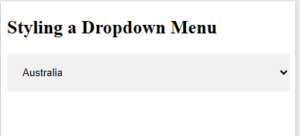
Style a Dropdown Menu
Example:
|
1 2 3 4 5 6 7 8 9 10 11 12 13 14 15 16 17 18 19 20 21 22 23 24 25 26 27 |
<!DOCTYPE html> <html> <head> <style> select { width: 100%; padding: 16px; border: none; border-radius: 4px; background-color: #f1f1f1; } </style> </head> <body> <h2>Styling a Dropdown Menu</h2> <form> <select id="country" name="country"> <option value="au">Australia</option> <option value="ca">Canada</option> <option value="usa">USA</option> </select> </form> </body> </html> |
Result: