
HTML Geolocation API
Using HTML Geolocation API
The Geolocation API is accessed via a call to navigator.geolocation. This will cause the browser to ask the user for permission to access their location data. If the user accept, the browser will search for the best available functionality on the device to access this information (for example GPS).
The getCurrentPosition() method is used to return the user’s current location.
The example below returns the latitude and longitude of the user’s current location:
Locate the User’s Position
The Geolocation API is used to access the user’s current location.
Since this can compromise privacy, the location is not available unless the user approves it.
Example
|
1 2 3 4 5 6 7 8 9 10 11 12 13 14 15 16 17 18 19 20 21 22 23 24 25 26 27 28 29 30 31 32 33 |
<!DOCTYPE html> <html> <body> <h3>HTML Geolocation</h3> <p>Click the button to get your coordinates.</p> <button onclick="getLocation()">Try It</button> <p id="demo"></p> <script> const x = document.getElementById("demo"); function getLocation() { if (navigator.geolocation) { navigator.geolocation.getCurrentPosition(success, error); } else { x.innerHTML = "Geolocation is not supported by this browser."; } } function success(position) { x.innerHTML = "Latitude: " + position.coords.latitude + "<br>Longitude: " + position.coords.longitude; } function error() { alert("Sorry, no position available."); } </script> </body> </html> |
HTML Geolocation
Click the button to get your coordinates.
- Check if Geolocation is supported
- If Geolocation is supported, run the
getCurrentPosition()method. If not, display a message to the user - The success() function outputs the user’s location in latitude and longitude
- The error() function alerts a text if the browser retrieves an error in
getCurrentPosition()
Error Handling and Rejections
The second parameter of the getCurrentPosition() method is used to handle errors. It specifies a function to run if it fails to get the user’s location.
Here is an example of a more specific error handling:
Example
|
1 2 3 4 5 6 7 8 9 10 11 12 13 14 15 16 17 18 19 20 21 22 23 24 25 26 27 28 29 30 31 32 33 34 35 36 37 38 39 40 41 42 43 44 45 46 |
<!DOCTYPE html> <html> <body> <h1>HTML Geolocation</h1> <p>Click the button to get your coordinates.</p> <button onclick="getLocation()">Try It</button> <p id="demo"></p> <script> const x = document.getElementById("demo"); function getLocation() { if (navigator.geolocation) { navigator.geolocation.getCurrentPosition(success, error); } else { x.innerHTML = "Geolocation is not supported by this browser."; } } function success(position) { x.innerHTML = "Latitude: " + position.coords.latitude + "<br>Longitude: " + position.coords.longitude; } function error(error) { switch(error.code) { case error.PERMISSION_DENIED: x.innerHTML = "User denied the request for Geolocation." break; case error.POSITION_UNAVAILABLE: x.innerHTML = "Location information is unavailable." break; case error.TIMEOUT: x.innerHTML = "The request to get user location timed out." break; case error.UNKNOWN_ERROR: x.innerHTML = "An unknown error occurred." break; } } </script> </body> </html> |
Result
HTML Geolocation
Click the button to get your coordinates.
Geolocation Object – Other interesting Methods
The Geolocation object also has other interesting methods:
watchPosition()– Returns the current location of the user and continues to return updated location as the user moves (like the GPS in a car).clearWatch()– Stops thewatchPosition()method.
The example below shows the watchPosition() method. You need an accurate GPS device to test this (like a smartphone):
Example
|
1 2 3 4 5 6 7 8 9 10 11 12 13 14 15 16 17 18 19 20 21 22 23 24 25 26 27 28 29 30 31 32 33 34 35 36 37 38 39 40 41 42 43 44 45 46 |
<!DOCTYPE html> <html> <body> <h1>HTML Geolocation</h1> <p>Click the button to get your coordinates.</p> <button onclick="getLocation()">Try It</button> <p id="demo"></p> <script> const x = document.getElementById("demo"); function getLocation() { if (navigator.geolocation) { navigator.geolocation.watchPosition(success, error); } else { x.innerHTML = "Geolocation is not supported by this browser."; } } function success(position) { x.innerHTML="Latitude: " + position.coords.latitude + "<br>Longitude: " + position.coords.longitude; } function error(error) { switch(error.code) { case error.PERMISSION_DENIED: x.innerHTML = "User denied the request for Geolocation." break; case error.POSITION_UNAVAILABLE: x.innerHTML = "Location information is unavailable." break; case error.TIMEOUT: x.innerHTML = "The request to get user location timed out." break; case error.UNKNOWN_ERROR: x.innerHTML = "An unknown error occurred." break; } } </script> </body> </html> |
Result
HTML Geolocation
Click the button to get your coordinates.
The getCurrentPosition() Method – Return Data
The getCurrentPosition() method returns an object on success. The latitude, longitude and accuracy properties are always returned. The other properties are returned if available:
| Property | Returns |
|---|---|
| coords.latitude | The latitude as a decimal number (always returned) |
| coords.longitude | The longitude as a decimal number (always returned) |
| coords.accuracy | The accuracy of position (always returned) |
| coords.altitude | The altitude in meters above the mean sea level (returned if available) |
| coords.altitudeAccuracy | The altitude accuracy of position (returned if available) |
| coords.heading | The heading as degrees clockwise from North (returned if available) |
| coords.speed | The speed in meters per second (returned if available) |
| timestamp | The date/time of the response (returned if available) |
HTML Drag and Drop API
Drag and Drop
Drag and drop is a very common feature. It is when you “grab” an object and drag it to a different location.
Example
|
1 2 3 4 5 6 7 8 9 10 11 12 13 14 15 16 17 18 19 20 21 22 23 24 25 26 27 28 29 30 31 32 33 34 35 36 37 38 39 |
<!DOCTYPE HTML> <html> <head> <style> #div1 { width: 350px; height: 70px; padding: 10px; border: 1px solid #aaaaaa; } </style> <script> function dragstartHandler(ev) { ev.dataTransfer.setData("text", ev.target.id); } function dragoverHandler(ev) { ev.preventDefault(); } function dropHandler(ev) { ev.preventDefault(); const data = ev.dataTransfer.getData("text"); ev.target.appendChild(document.getElementById(data)); } </script> </head> <body> <h1>Drag and Drop API</h1> <p>Drag the W3Schools image into the rectangle:</p> <div id="div1" ondrop="dropHandler(event)" ondragover="dragoverHandler(event)"></div> <br> <img id="img1" src="img_logo.gif" draggable="true" ondragstart="dragstartHandler(event)" width="336" height="69"> </body> </html> |
Result
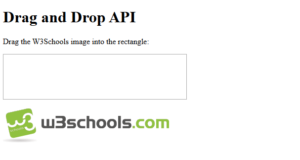
Make an Element Draggable
First of all: To make an element draggable, set the draggable attribute to true:
|
1 |
<img id="img1" draggable="true"> |
or
|
1 |
<p id="p1" draggable="true">Draggable text</p> |
What to Drag – ondragstart and setData()
Then, specify what should happen when the element is dragged.
In the example above, the ondragstart attribute of the <img> element calls a function (dragstartHandler(ev)), that specifies what data to be dragged.
The dataTransfer.setData() method sets the data type and the value of the dragged data:
function dragstartHandler(ev) {
ev.dataTransfer.setData(“text”, ev.target.id);
}
Where to Drop – ondragover
The ondragover attrribute of the <div> element calls a function (dragoverHandler(ev)), that specifies where the dragged data can be dropped.
By default, data/elements cannot be dropped in other elements. To allow a drop, we must prevent the default handling of the element.
This is done by calling the preventDefault() method for the ondragover event:
function dragoverHandler(ev) {
ev.preventDefault();
}
Window localStorage
Set and retrieve localStorage name/value pair:
Example
|
1 2 3 4 5 6 7 8 9 10 11 12 13 14 15 16 17 18 19 |
<!DOCTYPE html> <html> <body> <h2>The Window Object</h2> <h3>The localStorage Property</h3> <p>Saved name is:</p> <p id="demo"></p> <script> // Set Item localStorage.setItem("lastname", "Smith"); // Retrieve document.getElementById("demo").innerHTML = localStorage.getItem("lastname"); </script> </body> </html> |
Result
The Window Object
The localStorage Property
Saved name is:
Smith
Description
The localStorage object allows you to save key/value pairs in the browser.
Syntax
window.localStorage
or just:
localStorage
Save Data to Local Storage
localStorage.setItem(key, value);
Read Data from Local Storage
let lastname = localStorage.getItem(key);
Remove Data from Local Storage
localStorage.removeItem(key);
Remove All (Clear Local Storage)
localStorage.clear();