
HTML<iframe> Tag
Playing a YouTube Video in HTML
To play your video on a web page, do the following:
- Upload the video to YouTube
- Take a note of the video id
- Define an
<iframe>element in your web page - Let the
srcattribute point to the video URL - Use the
widthandheightattributes to specify the dimension of the player - Add any other parameters to the URL (see below)
Example
|
1 2 3 4 5 6 7 8 9 |
<!DOCTYPE html> <html> <body> <iframe width="420" height="345" src="https://www.youtube.com/embed/tgbNymZ7vqY"> </iframe> </body> </html> |
Result
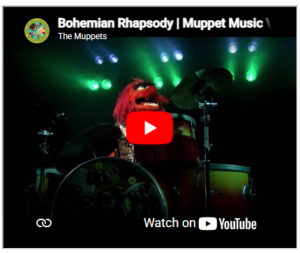
YouTube Controls
Add controls=0 to NOT display controls in the video player.
controls=0 – Player controls does not display.
controls=1 (default) – Player controls is displayed.
HTML <embed> Tag
Definition and Usage
The <embed> tag defines a container for an external resource, such as a web page, a picture, a media player, or a plug-in application.
Example
|
1 2 3 4 5 6 7 8 9 10 |
<!DOCTYPE html> <html> <body> <h1>The embed element</h1> <embed type="text/html" src="snippet.html" width="500" height="200"> </body> </html> |
Result