CSS Text Formatting
CSS has a lot of properties for styling and formatting text.
|
1 2 3 4 5 6 7 8 9 10 11 12 13 14 15 16 17 18 19 20 21 22 23 24 25 26 27 28 29 30 31 32 33 34 35 36 37 38 |
<!DOCTYPE html> <html> <head> <style> div { border: 1px solid gray; padding: 8px; } h1 { text-align: center; text-transform: uppercase; color: #4CAF50; } p { text-indent: 50px; text-align: justify; letter-spacing: 3px; } a { text-decoration: none; color: #008CBA; } </style> </head> <body> <div> <h1>text formatting</h1> <p>This text is styled with some of the text formatting properties. The heading uses the text-align, text-transform, and color properties. The paragraph is indented, aligned, and the space between characters is specified. The underline is removed from this colored <a target="_blank" href="tryit.asp?filename=trycss_text">"Try it Yourself"</a> link.</p> </div> </body> </html> |

CSS Text Color
The color property is used to set the color of the text. The color is specified by:
- a color name – like “red”
- a HEX value – like “#ff0000”
- an RGB value – like “rgb(255,0,0)”
Look at CSS Color Values for a complete list of possible color values.
The default text color for a page is defined in the body selector.
CSS Text Alignment and Text Direction
In this chapter you will learn about the following properties:
Text Alignment
The text-align property is used to set the horizontal alignment of a text.
This property can have one of the following values:
left– Aligns the text to the leftright– Aligns the text to the rightcenter– Centers the textjustify– Stretches the lines so that each line has equal width
The following example shows left, right and center aligned text (left is default if text direction is left-to-right, and right is default if text direction is right-to-left):
Text Align Last
The text-align-last property specifies how to align the last line of a text.
This property can have one of the following values:
auto– Default value. The last line is justified and aligned leftleft– The last line is aligned to the leftright– The last line is aligned to the rightcenter– The last line is center-alignedjustify– The last line is justified as the rest of the linesstart– The last line is aligned at the start of the lineend– The last line is aligned at the end of the line
Vertical Alignment
The vertical-align property sets the vertical alignment of an element.
This property can have one of the following values:
baseline– Default value. The element is aligned with the baseline of the parentlength/%– Raises or lower an element by the specified length or percentsub– The element is aligned with the subscript baseline of the parentsuper– The element is aligned with the superscript baseline of the parenttop– The element is aligned with the top of the tallest element on the linetext-top– The element is aligned with the top of the parent element’s fontmiddle– The element is placed in the middle of the parent elementbottom– The element is aligned with the lowest element on the linetext-bottom– The element is aligned with the bottom of the parent element’s font
CSS Text Decoration
The CSS text-decoration property is used to control the appearance of decorative lines on text.
It is a shorthand property for the following individual properties:
Add a Decoration Line to Text
The CSS text-decoration-line property sets the type of decoration line added to the text.
This property can have one or more of the following values:
none– Default value. Displays no decoration lineunderline– The decoration line is displayed under the textoverline– The decoration line is displayed over the textline-through– The decoration line is displayed through the text
Tip: You can combine multiple values, like overline and underline to display lines both over and under a text.
Specify a Style for the Decoration Line
The CSS text-decoration-style property sets the style of the decoration line.
This property can have one of the following values:
solid– Default value. Single linedouble– Double linedotted– Dotted linedashed– Dashed linewavy– Wavy line
CSS Text Transformation
The CSS text-transform property is used to control the capitalization of text in an element.
It can be used to transform a text into uppercase or lowercase letters, or capitalize the first letter of each word, without changing the original content in HTML.
This property can have one of the following values:
none– No transformation. Text renders as it iscapitalize– Transforms the first character of each word to uppercaseuppercase– Transforms all characters to uppercaselowercase– Transforms all characters to lowercase
CSS Text Spacing
CSS has several properties to control text spacing.
In this chapter you will learn about the following properties:
CSS Letter Spacing
The CSS letter-spacing property is used to specify the space between the characters in a text.
Tip: Negative values are allowed.
Example
Increase and decrease the space between characters:

CSS Line Height
The CSS line-height property is used to specify the space between lines.
Note: Negative values are not allowed.
Example
Specify the space between lines:

CSS Text Shadow
The text-shadow property adds shadow to text.
In its simplest use, you only specify the horizontal and the vertical shadow.
In addition, you can add a shadow color and blur effect.
|
1 2 3 4 5 6 7 8 9 10 11 12 13 14 15 |
<!DOCTYPE html> <html> <head> <style> h1 { text-shadow: 2px 2px 5px red; } </style> </head> <body> <h1>Text-shadow effect!</h1> </body> </html> |

Font Selection is Important
Choosing the right font has a huge impact on how the readers experience a website.
The right font can create a strong identity for your brand.
Choosing a font that is easy to read is important. It is also important to choose a good color and size for your font.
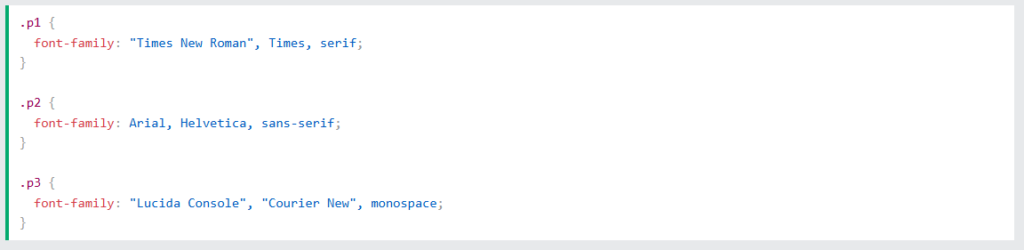
The CSS font-family Property
The CSS font-family property specifies the font for an element.
Tip: The font-family property should hold several font names as a “fallback” system. If the browser does not support the first font, it tries the next font. The font names should be separated with a comma.
Always start with the font you want, and always end with a generic family, to let the browser pick a similar font in the generic family, if no other fonts are available.
Example
Specify some different fonts for three paragraphs:
CSS Font Style
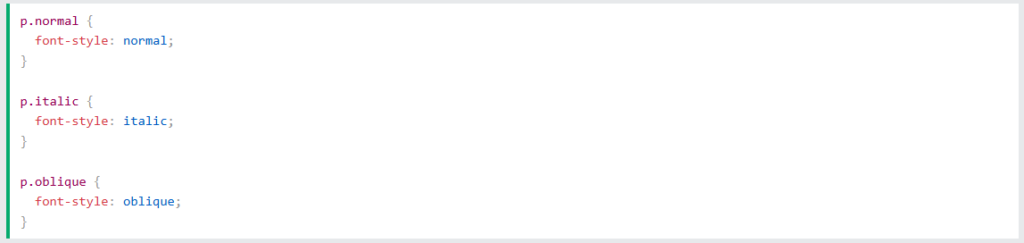
The CSS font-style property specifies the font style for a text..
This property can have one of the following values:
normal– The text is shown normallyitalic– The text is shown in italicsoblique– The text is “leaning” (oblique is very similar to italic)
Example
CSS Font Weight
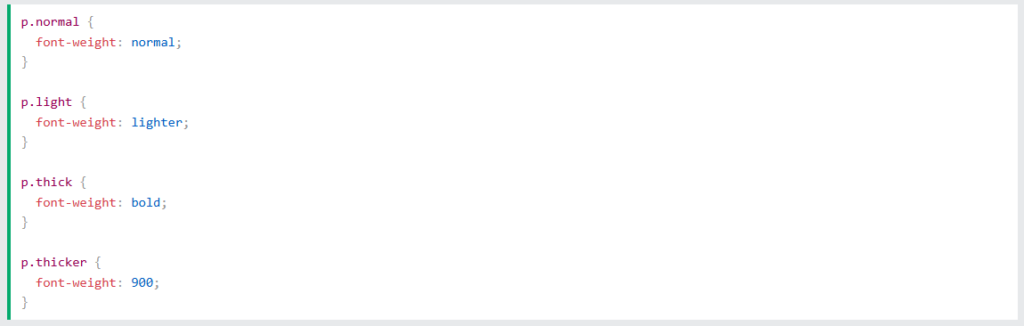
The CSS font-weight property specifies how thick or thin characters in text should be displayed.
This property can have one of the following values:
normal– This is default. Defines normal charactersbold– Defines thick charactersbolder– Defines thicker characterslighter– Defines lighter characters100-900– Defines from thin to thick characters. 400 is the same as normal, and 700 is the same as bold
Example
 +
+
CSS Font Size
The CSS font-size property is used to specify the size of the text/font.
Being able to manage the text size is very important in web design.
However, you should not use font size adjustments to make paragraphs look like headings, or headings look like paragraphs. Always use the proper HTML tags, like <h1> – <h6> for headings and <p> for paragraphs.
The font-size can be set to an absolute size or to a relative size.
Absolute sizes:
px: Pixels offers fixed and precise control over the font size.xx-small,x-small,small,medium,large,x-large,xx-large. These keywords has a predefined set of sizes in browsers.
Relative sizes:
em: This unit is relative to the font size of the parent element.rem: This unit is relative to the font size of the root HTML element.%: This unit is relative to the font size of the parent elementsmallerandlarger: These units adjust the font size relative to the parent element.
Set Font Size With Pixels
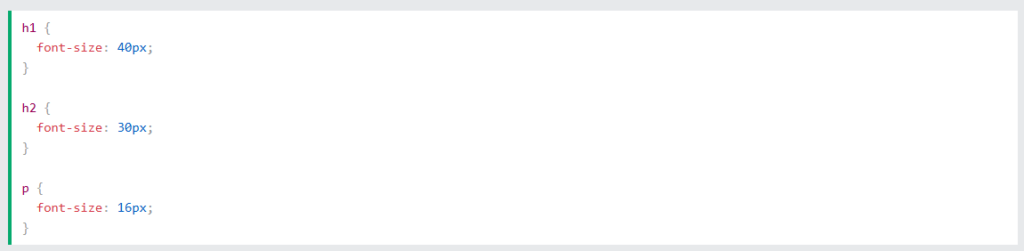
Setting the text size with pixels (px) gives you full control over the text size.
If you use pixels, the web page may not scale very well on different screen sizes and the users cannot adjust the text size in their browser settings. However, users can still use the zoom tool to resize the entire page.
Example
Set font sizes with px:
Set Font Size With Em
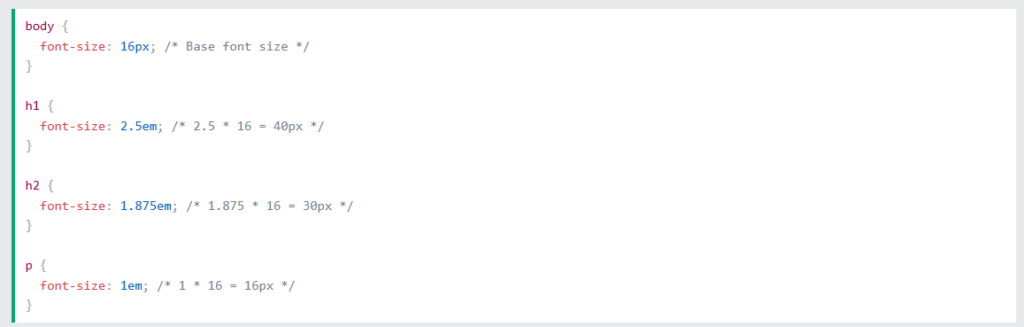
The em unit is relative to the font size of the parent element. So, if the parent element has a font size of 16px, then 2.5em would result in 40px.
In the following example, the text size in em is the same as the previous example in pixels. However, the em unit allows the user to adjust the text size in the browser settings.
Example
Set font sizes with em:
Google Fonts
If you do not want to use any of the standard fonts in HTML, you can use Google Fonts.
Google Fonts are free to use, and have more than 1000 fonts to choose from.
How To Use Google Fonts
Just add a special style sheet link in the <head> section and then refer to the font in the CSS.
Example
Here, we want to use a font named “Sofia” from Google Fonts:

Result:

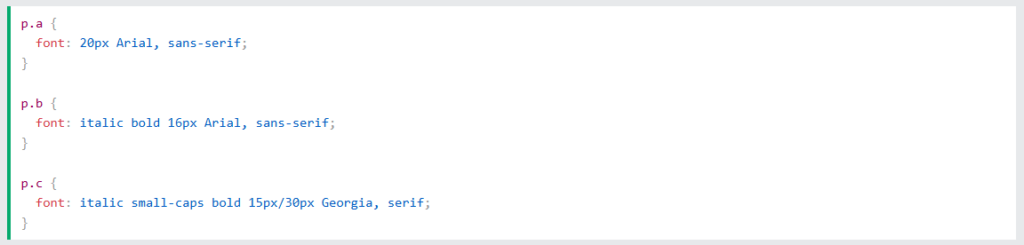
The CSS Font Shorthand Property
To shorten the code, it is possible to specify all the individual font properties in one declaration.
The CSS font property is a shorthand property for:
Rules for the CSS Font Shorthand Property
- The
font-sizeandfont-familyvalues are required. If one of the other values is missing, their default value are used. - If defined,
font-style,font-variantandfont-weightmust precedefont-size. - If defined,
line-heightmust immediately followfont-size, preceded by “/”, like this: 15px/30px. font-familymust be the last value specified.
Example
Use the font shorthand property to set multiple font properties in one declaration: